How to configure TP Link TD-W8968 Wireless N ADSL Modem cum Router for BSNL and MTNL

by Sujith on 08/24/2012

TP Link TD W8968 thumb How to configure TP Link TD W8968 Wireless N ADSL Modem cum Router for BSNL and MTNL

TP Link TD-W8968 300 Mbps Wireless N USB ADSL 2 Modem cum router  is one of the best and economical Wireless Routers available in market. The router provides upto 300 Mbps bandwidth with coupled wireless  adaptors/devices which supports wireless 802.11n standards. This routers is down compatible with 802.11g and 802.11b products.

This Router has one USB port, Four Ethernet ports and one RJ11 ADSL port. You will get a maximum download speed of 24 Mbps and Upload bandwidth of 3.5 Mbps. The notable feature is that you can flexibly restrict the bandwidth of every users separately. This feature is normally not available in normal ADSL Modem cum routers. Other standard features include inbuilt firewall, inbuilt DHCP server, state of the art wireless encryption technology, Multiple PVCs, Virtual server, DMZ host, IP Address Mapping  etc

Front Panel LED status indications

TP Link TD-W8968 has Ten LED status indicators. Through this indicates you can see the status of Link, Connections, WiFi and internet connectivity .
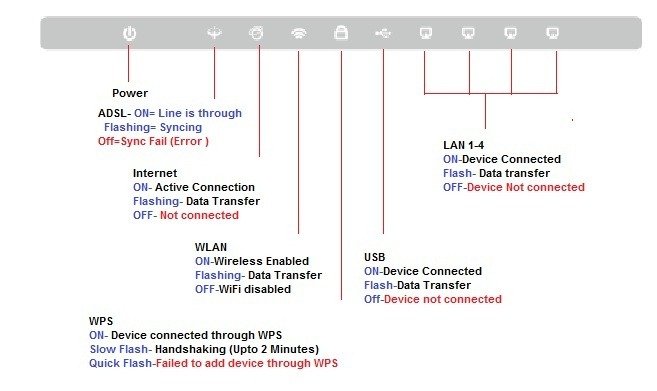
tp link front panel led thumb How to configure TP Link TD W8968 Wireless N ADSL Modem cum Router for BSNL and MTNL

Wiring Diagram.

Proper wiring of the router is important for setup, configuration and uninterrupted connectivity. An external ADSL splitter is provided with this router. Your telephone line must be terminated to the ADSL splitter first. Nothing should be connected in this line before splitter. You can connect the parallel telephone instruments to the phone output of the splitter if required. See the connection diagram.
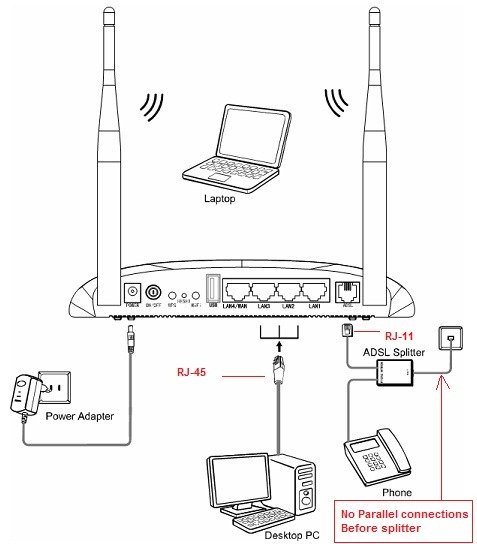
TP Link TD W8968 Connection Diagram thumb How to configure TP Link TD W8968 Wireless N ADSL Modem cum Router for BSNL and MTNL

Configuration

After proper wiring and connections, switch ON the modem. Connect the Ethernet port of your PC/Laptop with the supplied RJ-45 LAN cable.  Now coming to your computer’s network configuration settings. By default DHCP is enabled in this router and you need not to do anything with your PC network settings. To check the proper connectivity click the start button and type the command “cmd” in search box ( Windows 7). If you are using Windows XP after clicking the start button select the “run” tab and type “cmd”. Now the command prompt window will be opened. In that window type ping 192.168.1.1 and press enter. If you are getting the result similar to the screenshot below, it shows your router is properly connected to PC.

ping thumb How to configure TP Link TD W8968 Wireless N ADSL Modem cum Router for BSNL and MTNL

If you are getting anything other than this, you have to configure your network adaptor.

Open your browser and type http://192.168.1.1 in the address bar. A popup window will be opened to enter user name and password. Use “admin” in both user id and password fields (small letters). A successful login will display the following basic status page. Select the WAN Settings sub menu by expanding the Network Menu as shown

status thumb How to configure TP Link TD W8968 Wireless N ADSL Modem cum Router for BSNL and MTNL

The WAN setting page will display the WAN port information in a Table format as shown.

wan thumb How to configure TP Link TD W8968 Wireless N ADSL Modem cum Router for BSNL and MTNL

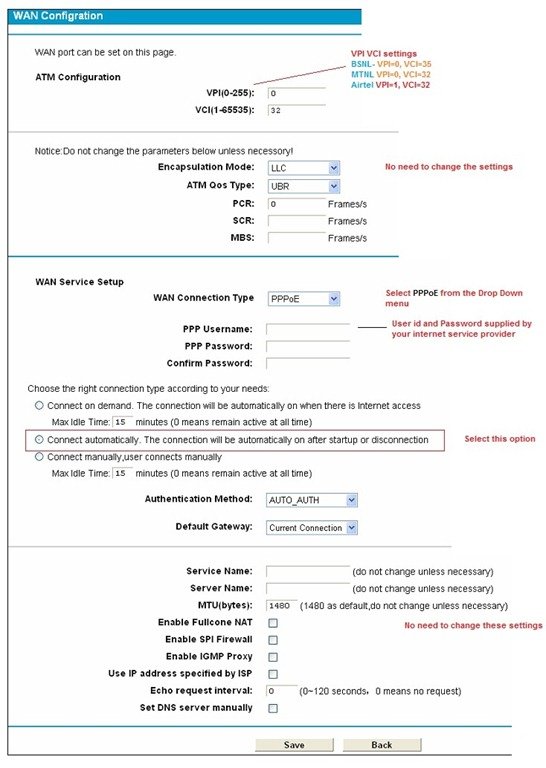
Delete all existing connections and press the ADD button to create an new connection. You will get a screen as shown below. Do the necessary changes as indicated in the image and save the settings
configuration thumb How to configure TP Link TD W8968 Wireless N ADSL Modem cum Router for BSNL and MTNL

In this page you only need to change Four settings only.

First: Change the VPI/VCI settings as per your ISP. This setting is very much important for internet connectivity. Use the following VPI/VCI settings

  • BSNL Broadband – 0 and 35
  • MTNL Broadband – 0 and 32
  • Airtel Broadband  – 1 and 32
  • Reliance Broadband    – 0 and 35

Second: Select “PPPoE” from the drop down menu as WAN Connection Type under WAN service Type section.

Third :Enter the user id and password supplied by your ISP (BSNL, MTNL ). The field is case sensitive.

Fourth: Select the connection type to “Connect Automatically”. This will make connection automatically after switching ON the device. Click the save button after completing above mentioned steps. Reboot the modem by clicking the Reboot sub menu under System Tools Menu

reboot thumb How to configure TP Link TD W8968 Wireless N ADSL Modem cum Router for BSNL and MTNL

Optionally you can reboot the router by OFF/ON the power supply.

WiFi settings of TP Link TD-W8968

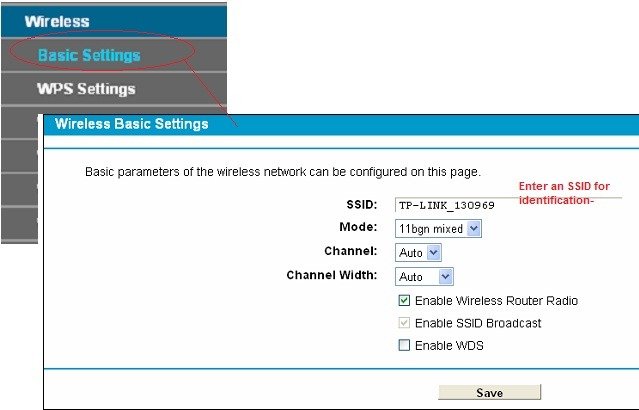
Select the Basic Setting submenu of Wireless Menu in the configuration page. In Wireless Basic settings you can enter the SSID (Name of your wireless network), Mode (WiFi Standard), Channel and Channel width. You can use anything as SSID. Maximum character limit is 32. It is advisable to use the Mode 11bgn Mixed to make the router compatible for all type of client systems.
wifi thumb How to configure TP Link TD W8968 Wireless N ADSL Modem cum Router for BSNL and MTNL

Keep the Channel and Channel width Auto. If you want, you can change the channel from the drop down menu. You must select to Enable Wireless Router Radio to use WiFi features of the router. If you select Enable SSID Broadcast option  When wireless clients survey the local area for wireless networks to associate with, they will detect the SSID broadcast by the Modem Router. If you want to bridge two or more Wireless LANs then only use Enable WDS option . After that Save the settings.

WiFi Security Options

You must configure the Wireless Security options to make your WiFi network confidential. Select the Wireless Security sub menu under Wireless menu. This router supports three type of WiFi security modes. WEP, WPA -PSK, WPA2 –PSK

wifi security thumb How to configure TP Link TD W8968 Wireless N ADSL Modem cum Router for BSNL and MTNL

Figure shows the Wireless Security configuration page. By default Wireless security is disabled. You have to select the appropriate mode of WiFi security as per your requirement. WEP is an outdated security standard and vulnerable also. It is advisable to use WPA-PSK or WPA2-PSK . Select WPA-PSK/WPA2-PSK  option and configure it.

In Auth type you can set Auto, WPA or WPA2 . Three options of Encryptions available (TKIP, AES and Auto). It is better to keep the settings “Auto”. Now coming to the important part. PSK password- This is the password used for authentication. Use a non guessable word or group of words as password.  You have to enter  the same password in your wireless clients (PC, Laptop, Mobile, Tablet etc) for connectivity.

Click the Save button for saving the settings.

Bandwidth Control

Just quoting the comment of a reader on a previous post

Hi Sir,
I have BSNL Broadband connection and a Fujian starnet S4U+ V.1 modem,i share my connection with my room mate,he is connected on Lan4 port mine is Lan1,he is taking a lot of bandwidth,so how can I set QOS? traffic limitation for Lan4 (him)
please help.

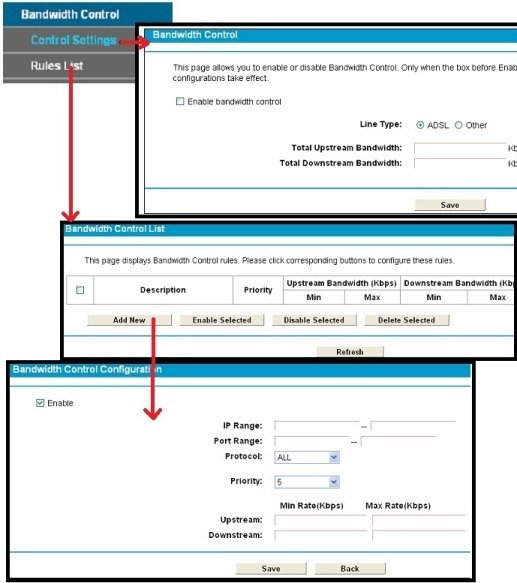
You might have also faced the similar problem. Unfortunately normal routers don’t facilitate flexible bandwidth control. Here TP Link TD –W8968 is the winner. Through the Bandwidth control option, you can very easily and flexibly allocate bandwidth for each client machines. Two settings are available under Bandwidth Control Menu- Control Settings and Rules Lists. See the screenshots
bandwidth control thumb How to configure TP Link TD W8968 Wireless N ADSL Modem cum Router for BSNL and MTNL

Enable the Bandwidth Control option under Control settings menu to turn ON this feature. Set the Line type to ADSL  and enter the total upstream and downstream bandwidth in kbps. This settings will limit the overall upstream and downstream bandwidth from/to your modem. For example if your maximum downstream speed is  8 Mbs multiply this with 1024 to get the bandwidth in Kbps which will be  8192 Kbps.

Select the Rules List menu to view and configure the bandwidth control (See the above image). Click the Add New button for making a new rule. In the page You can enter the IP range and minimum/maximum upstream/downstream bandwidth. For example if you want to restrict the bandwidth of a particular machine. Get the IP of that machine and enter the IP address in both the fields of IP Range.

Remember: If you enable DHCP , this setting won’t be effective because under DHCP, the clients will be allotted IP addresses dynamically. Hence for effective bandwidth control Disable DHCP .  You can change the DHCP settings through DHCP Server Menu options. Under DHCP settings – Select the option “Disable DHCP Server”. Now you have to configure the network adaptors of client machines. Router will not provide IP to client machines automatically.

You can also use MAC binding option to reserve an IP address exclusively for a particular machine . For that Select the IP and MAC Binding Menu. A page displays the IP and MAC binding table. You can delete, add and edit the entries. See the screenshot .

mac binding thumb How to configure TP Link TD W8968 Wireless N ADSL Modem cum Router for BSNL and MTNL

Get the mac address of your PC/Laptop and map with the desired IP Address.

If you are facing any problems in configuration part please share the same through comments.


{ 21 comments… read them below or add one }

Rohan September 5, 2012 at 11:50 PM

Is this router available in India yet?

Reply

Suhas September 12, 2012 at 11:04 PM

Where in Bangalore can we purchase this router and what is the price ????

Reply

Charles Dsouza November 27, 2012 at 6:00 PM

Hi,

I am trying to setup a WDS bridge at home. I have a beetel modem that acts as a wifi router too connected to Airtel for broadband. I need to extend the wireless range so, I bought a TP-Link wifi router and I am trying to use the WDS feature on the tplink router. I have done the following on tp-link:

1. Disabled DHCP.
2. Ensured it is in same sub-domain (192.168.1.2). Beetel modem is in 192.168.1.1.
3. Enabled WDS, did a survey and selected the wifi from beetel.
4. entered all authentication info to connect to the beetel wifi.

The tp-link status says “ASSOC” which as per their manuals is “Trying to associate”. Not sure if it can’t find an IP for it, I think authentication is successful.

Can you help me with this? Im not sure what i’m missing. I also have read that different manufacturers devices may not be compatible for WDS as IEEE does not define a standard for WDS. Any help will be appreciated.

Reply

ramesh December 11, 2012 at 2:13 PM

I purchased belkin modem for bsnl broadband, i configured the modem in bsnl office. Signal strength is good and browsing all website is fast, but i could not able to work through my office server by using virtual private network (vpn). Belkin technical support also not able to guide properly to solve the problem, now i given the modem to one of my relative. It is possible to work in vpn through bsnl modem, but signal strength through wifi is poor, so i dont want to buy bsnl modem. Please let me know which modem will be suitable to solve my purpose.

Reply

Sujith December 11, 2012 at 2:22 PM

You can setup VPN irrespective of the router model and brand. Configure VPN connection in your PC. http://support.microsoft.com/kb/305550

Reply

Nabin Sundar Nayak January 11, 2013 at 12:14 AM

I had purchased tp link 150Mbps Wireless N ADSL2+ Modem Router some days ago. Before that I had a type 1 modem of bsnl. After installing the new 150Mbps Wireless N ADSL2+ Modem Router, I get access to internet on my desktop. But when I tried to connect my HTC explorer phone it didnot worked. The phone said that, its connected to 150Mbps Wireless N ADSL2+ Modem Router, but in real it can’t access to internet. I can’t internet on my phone. I did everything but fruitless. so help me plz…

Reply

Jeff January 13, 2013 at 9:21 AM

I have tried changing the default ip address of the TD-W8968 from the default 192.168.1.1 to a new ip address of 10.1.1.129 without success. I can successfully ping the TD-W8968 at 10.1.1.129 but cannot connect to the browser-based TD-W8968 management page which should be at 10.1.1.129. Chrome and Firefox return an error of “the server refused the connection” when I try to access 10.1.1.129.

Reply

Sujith January 13, 2013 at 9:30 AM

Have you assigned the default gateway in your network adaptor to 10.1.1.129?

Reply

Jeff January 13, 2013 at 9:57 AM

Yes, I have tried automatic DCHP settings and manually assigned ip, mask, gateway,DNS,etc.

I can get the TD-W8968 “sort-of” working with a new address of 10.1.1.129 by assigning 10.1.1.129 as a “secondary ip address”, and manually assigning ip, mask, gateway,DNS,etc. on all of the network computers. However, then the TD-W8968 DCHP server still allocates addresses in the old default 192.168.1.1 address space and gives an error if I try changing to a 10.1.1.129 address space so I can’t use automatic TD-W8968 DCHP ip assignment. The only way around it might be to establish a separate DCHP server on the network for the 10.1.1.129 address space.

I notice that when I manually re-start the TD-W8968 it reverts to the default address of 192.168.1.1, although I can make a secondary ip address of 10.1.1.129 and all other settings “stick” after a manually re-start of the TD-W8968.

Reply

colarado February 21, 2013 at 8:48 PM

I bought TD-W8968. The WIFI is working fine. However I’m not able to access USB mass storage

The manual mention

For Windows OS:Open “Run” window in the Start menu and enter \\(IP Address) or \\(IP Address)\(Share Name)
e.g. \\192.168.1.1 or \\192.168.1.1\photo;

but it does not work for me, it shows error

Windows cannot access
Error Code: 0×80070035
The network path was not found

OS: Win7
The storage sharing access is Enabled

Can you guide

Thanks

Reply

Sujith February 21, 2013 at 9:10 PM

In Windows 7 Go to Start, Type run in the search box. Type \\tplinklogin.net and click OK. To setup different accounts for access rights protection, please log into to the Web management page and set it on USB Settings > Storage Sharing and USB Settings > User Accounts.

Reply

davinder March 8, 2013 at 1:17 AM

i have the same router, when ever i power off and then power on my router, my router is taking too much time to connect to internet. did every thing to solve the issue but nothing worked. i have updated firmware installed.
i had no issues with my old bsnl modem.

please help sir

Reply

Rosh March 22, 2013 at 10:40 AM

Hi,

I bought a Wifi w8968 router yesterday and I am trying to connect to internet using reliance netconnect +. I gave the credentials and clicked on connect. It tries and disconnects.

I can see reliance net connect in the drop down. Can you please help me how to configure it?

I have set my Operation mode as ’3G Router Mode’, I tried with Wireless Router mode as well, but it didnt work.

Please help.

Regards,
Rosh K. Mathews

Reply

Rupinder April 1, 2013 at 8:28 PM

Hi Sujit,

I have TPLINK ADSL Wifi Router ,Using Reliance broadband ,here i am not able to use it on multiple PC, getting Login page every laptop/PC ,need logout from fist then login second pc please help

Reply

Sujith April 1, 2013 at 9:39 PM

I think you should contact Reliance broadband customer care for enabling that feature.

Reply

Rosh K M April 2, 2013 at 3:33 PM

Hi Sujith,
I tried contacting the Reliance Customer care. They were very rude by saying ‘We cant support or help you in this regard’. please contact your wifi modem provider.’

I tried contacting TP-Link support. Equally non-responsive area. The customer support toll free number is not picked up at all. Tried sending a mail to customer support of Tp-Link. They replied saying, ‘Please switch on your reliance dongle and try again’ and attach logs, as if i have bought the dongle yesterday. I replied with logs with dongle version etc. After that no reply.

I tried contacting Ralph, their south sales manager. He replied saying he will direct some engineer and guide me. No one turned up, i sent a reminder SMS, no reply.

Now i have ended up with a stupid box. If any one wants it please contact me. Its straight out of the box and i have kept it back now.

This has taught me not to buy any stuff from TP-LINK. Really bad customer support.

~Rosh.

Reply

Rosh K M April 2, 2013 at 3:36 PM

Hi Rupinder,
Can u please help me in telling me the configuration you have used, to connect to reliance network..?

I am using reliance dongle.

~Ros

Reply

rahul May 2, 2013 at 12:20 PM

I have Low SNR problem in my bsnl broadband conection due to which the modem which I am using TP LINK Wireless N ADSL2+ Modem Router
Model no. TD-W8951ND doesn’t work and speed is very very low.
please give me solution what can I do.

Reply

Shahid May 3, 2013 at 5:41 PM

I bought this TP-Link W8968 Adsl2+ router 2 days ago and disappointed with its USB sharing features.
I have attahced 500GB NTFS single partition external disk and not able to use it. I have created two acounts in the router. I somehow manage to access the share like this:
\\routers ip address\sharename but not able to create any folder. I checked the router for privileges and all are fine. USB hdd works fine when attached directly to computer.

I posted for help with images in their forum but no response:
http://forum.tp-link.com/showthread.php?3990-USB-Sharing-issues&region=china

Please help otherwise my money will be total waste. USB was the main reason to buy this router.

Reply

Sujith May 3, 2013 at 9:30 PM

1. Under user accounts (In USB Settings menu) you have to create users who can access the folders.
2. Select the Storage Sharing under USB settings menu. Enable the server status. To access the whole disc go to Start > Run in windows pc and type \\192.168.1.1

Reply

Sujith May 3, 2013 at 9:46 PM

One thing forgot to mention- You have to uncheck the “Anonymous Access to all volumes” first to create shared folders which is enabled by default Tp link USB share

Reply

Leave a Comment

*

Previous post:

Next post: